New Version 20.09.13: Pad Blur and Rich Text Video Filters
Version 20.09.13 is now available for DOWNLOAD!
Security Notice
All users are encouraged to upgrade to address a security vulnerability (CVE-2020-24619) in Shotcut’s check for a new version. In previous versions it was not using a secure network connection making it is possible for an attacker to change the URL to the web page containing the release notes and download link. That has been fixed in this version.
HTML5 Deprecation
Shotcut’s HTML5-based filters – including non-obvious video filters such as Crop: Rectangle in previous versions – were based on an old technology (QtWebKit) that we decided to remove. The technology is no longer officially supported by its founding organization and hinders our ability to upgrade more important technology. Moreover, there were some lingering stability bugs related to its integration that are very difficult to fix. In the previous version, some filters were marked as “DEPRECATED” as a result of this decision, namely Text: HTML, but not Crop: Rectangle, Crop: Circle, and Choppy. These were rewritten for this version. This new version automatically converts the Choppy, Crop: Circle, and Crop: Rectangle video filters in an existing project to their new replacements. Also, we added a new video filter named Text: Rich. It is not as capable as the old Text: HTML, but it should be easier to use and manage while being more reliable. The deprecated HTML-based filters are still included in this version, but now they are hidden. They will appear only when loading old projects that include them. This provides a transition to the next version that actually removes these filters: You can load an old project using the deprecated filters and replace or remove them.
New
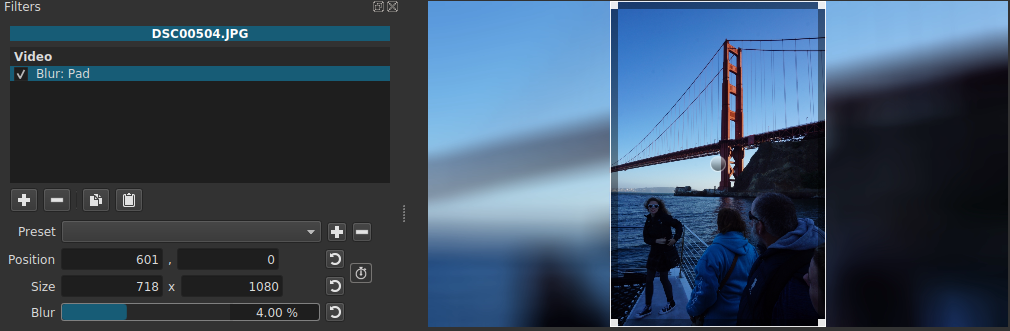
Blur: Pad Video Filter
This is a new useful alternative to cropping to remove black bars from images or videos whose aspect ratio does not match the project. It is available in the slideshow generator as Pad Blur.
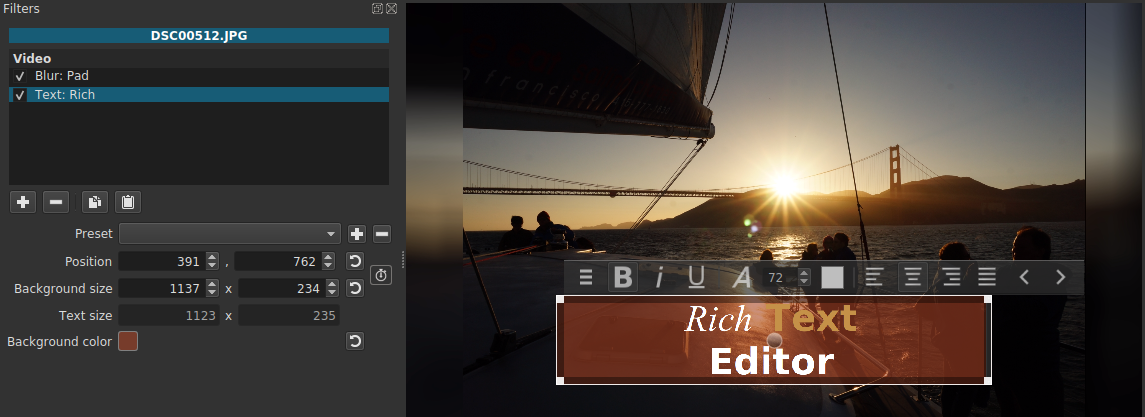
Text: Rich Video Filter
The rich text editor writes directly on the video preview, has a floating toolbar, and saves itself into the project file with no external HTML files to manage.
New Stock Layouts with Quick Switcher
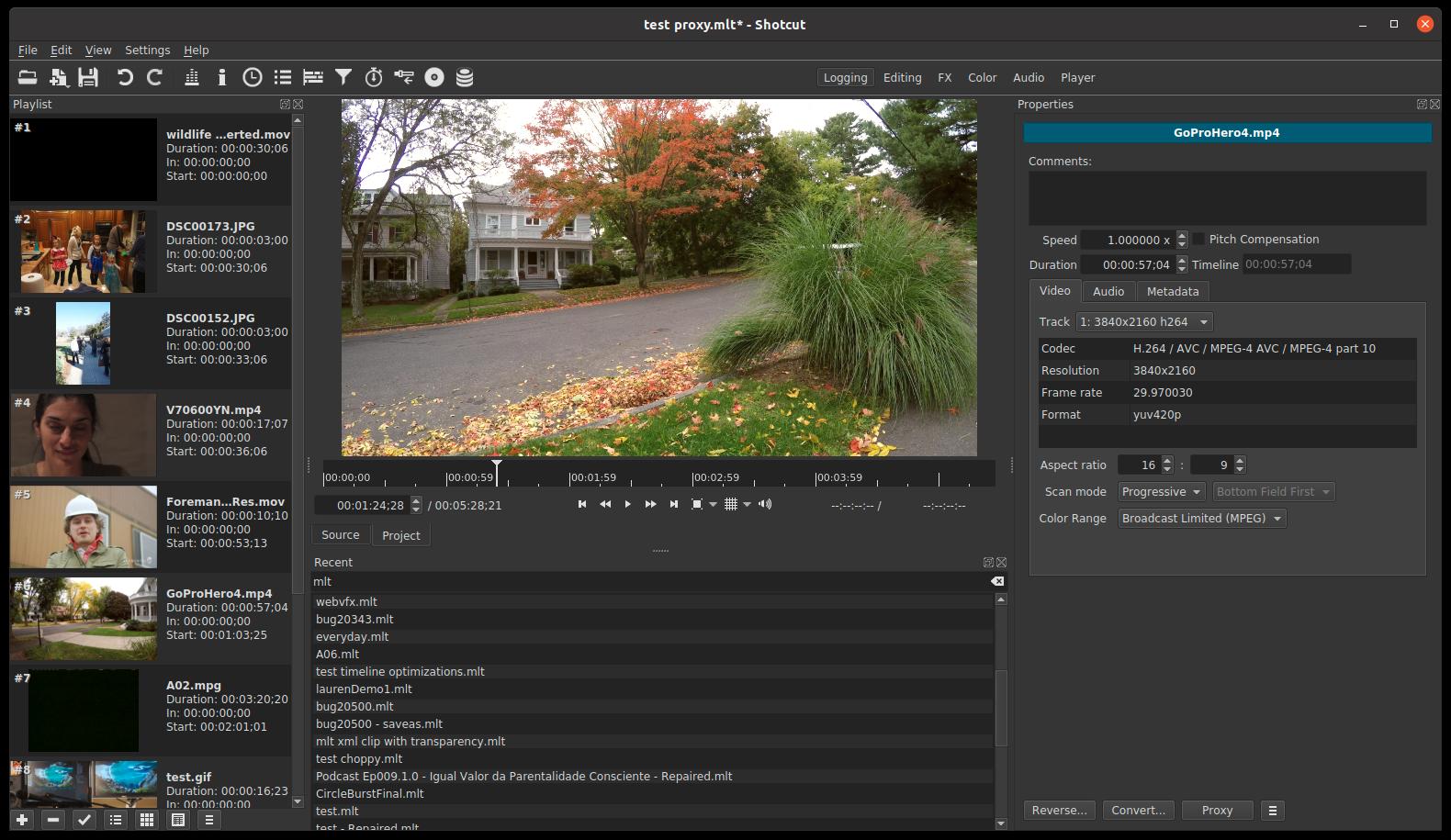
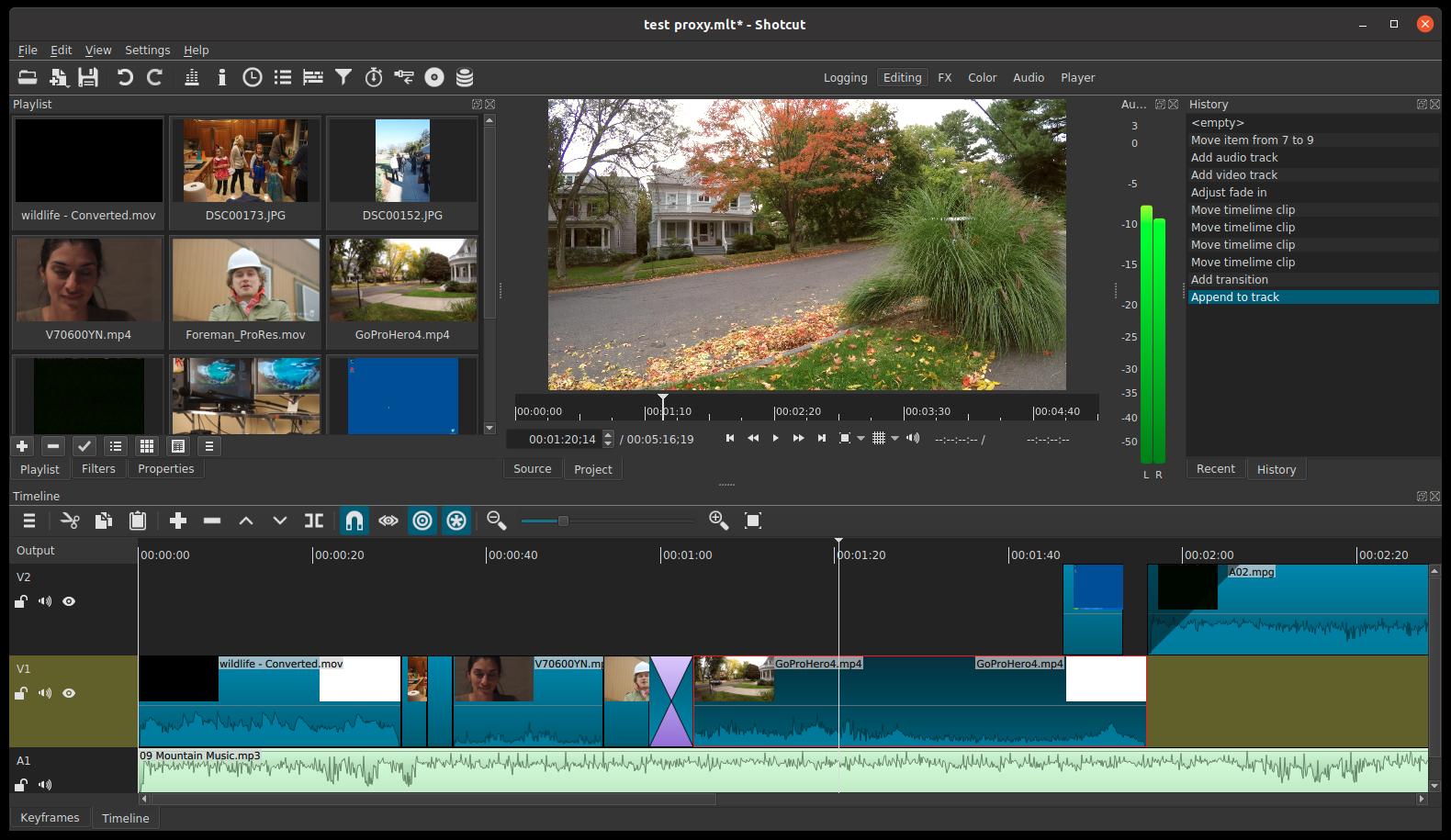
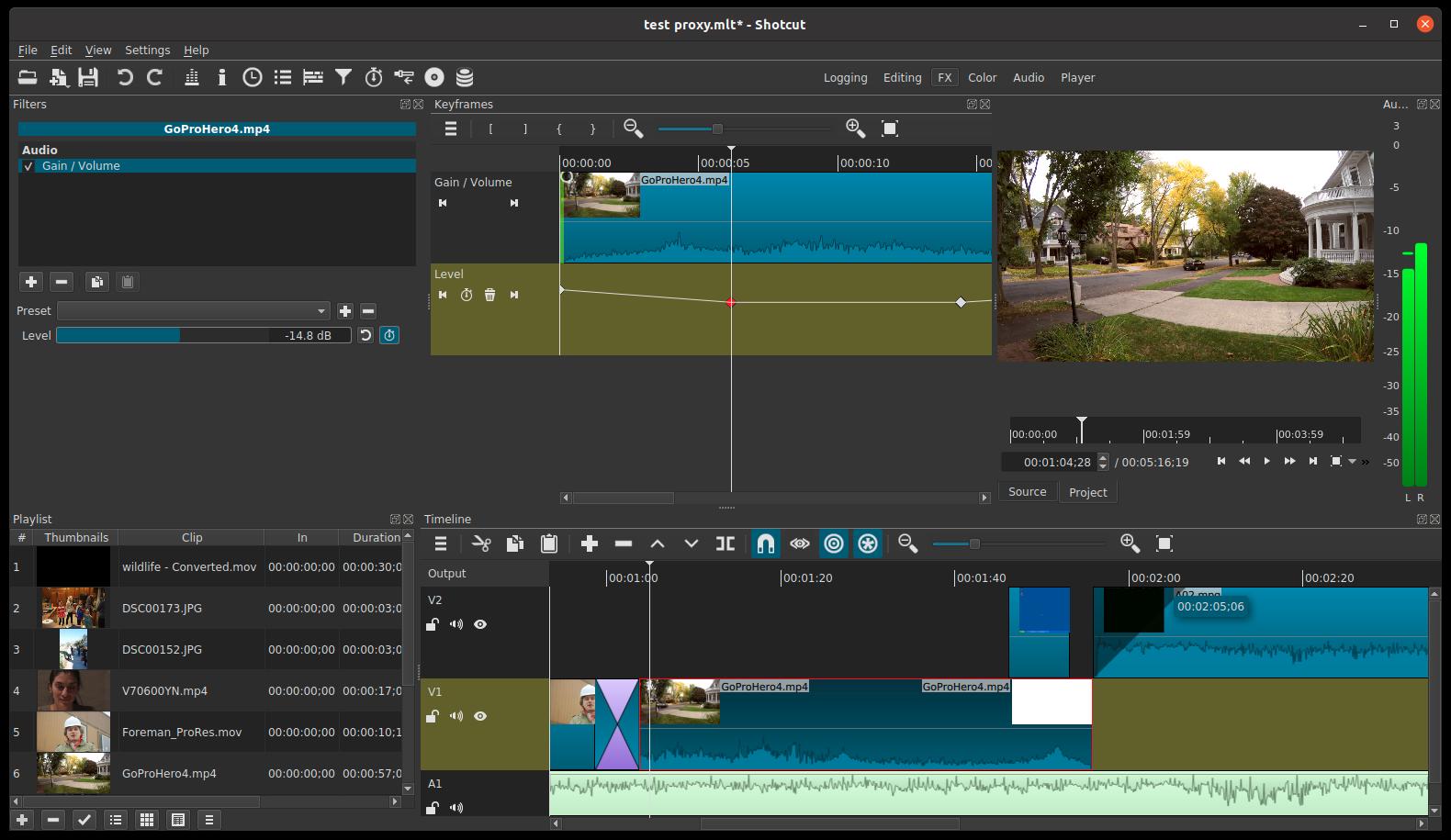
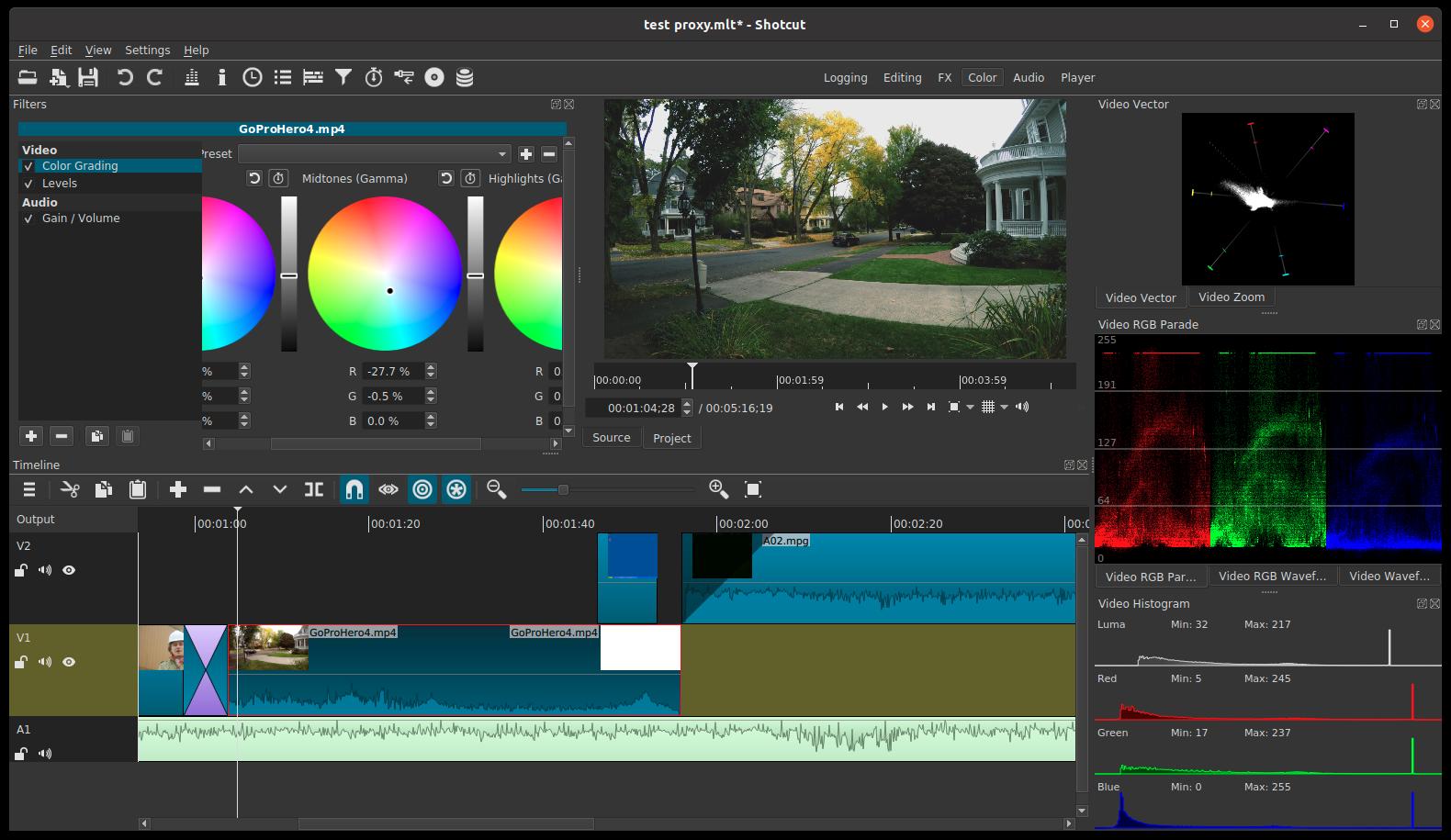
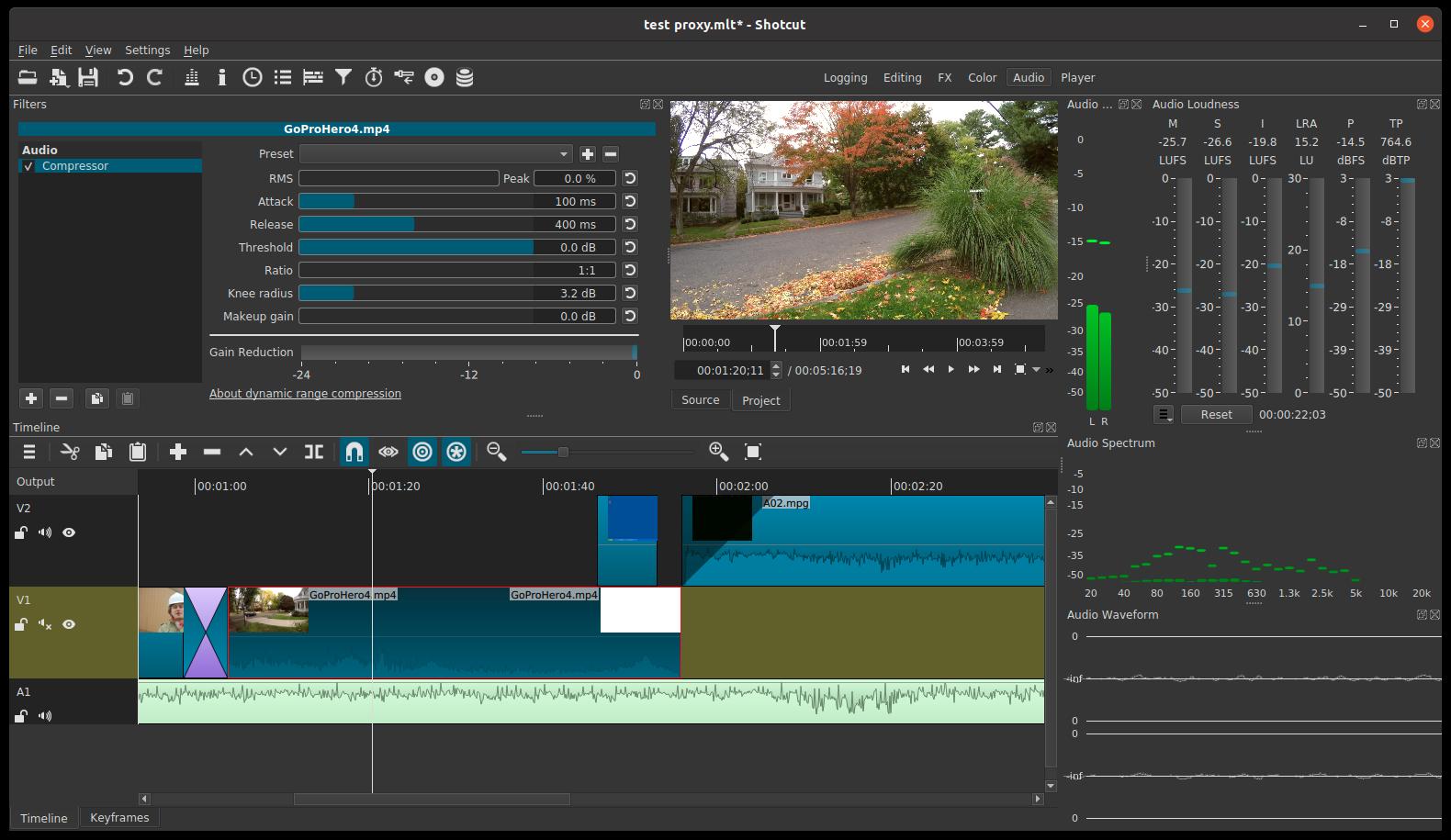
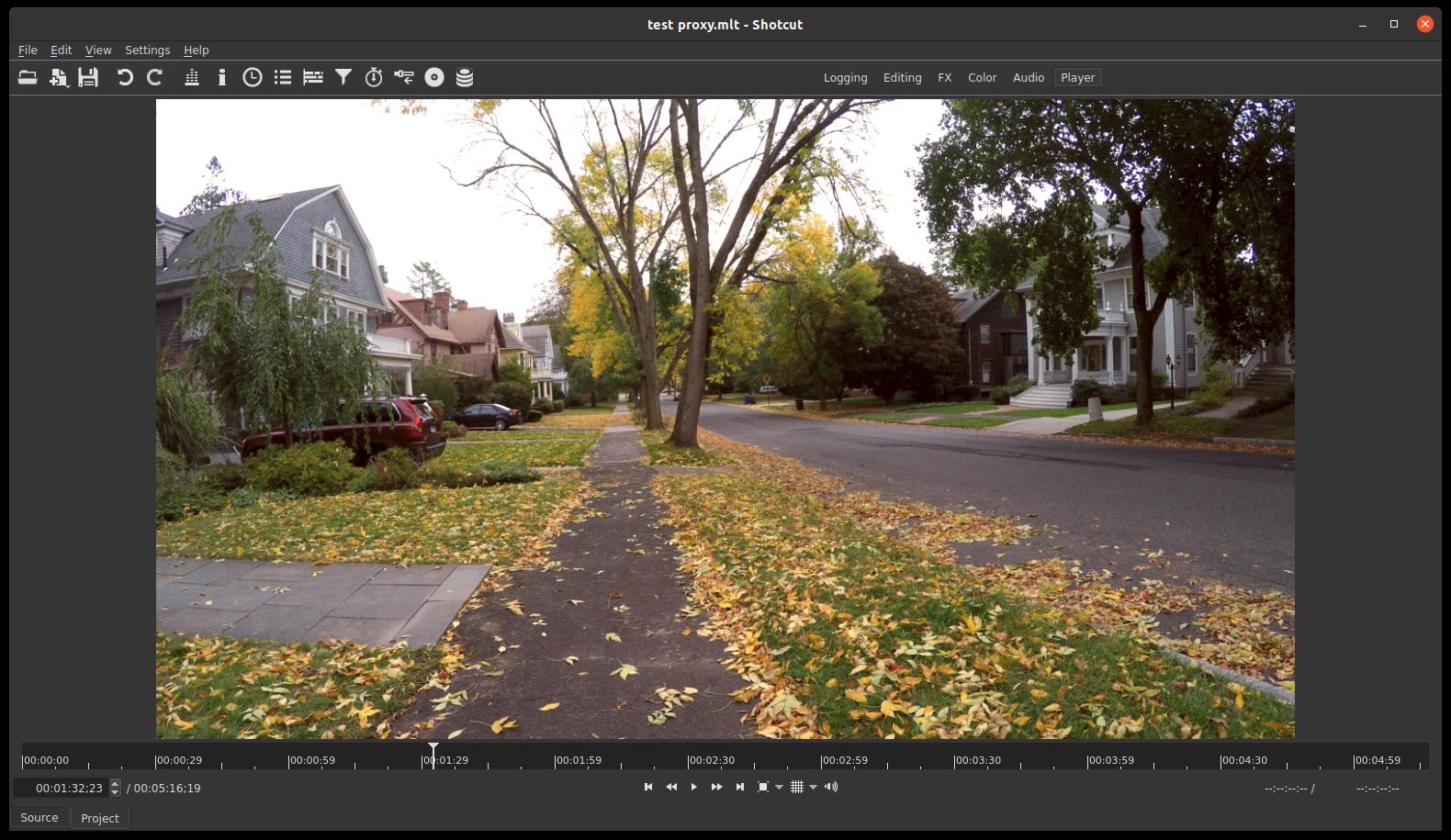
- Replaced View > Layout > Timeline Project with new, better Logging, Editing, FX, Color, Audio, and Player stock (pre-defined) layouts.
- The current layout is saved automatically for each stock layout if selected, and Restore Default Layout is different for each stock layout.
- Added a workspace layout switcher to the main toolbar for the new stock workspace layouts. Shotcut has had a named layout system and switching in the View menu for a while now, but the stock layouts were lacking imagination. Taking inspiration from some other tools, we add new ones
Other New Things
- Added Zoom to fit icons to the Timeline and Keyframes toolbars. Thanks to @Namna for this contribution.
- Added a VUI to the 360: Transform video filter to adjust parameters by dragging inside the player.
- Added Set Equirectangular Projection… to the Jobs menu for a successful export job. This is used to add metadata to a video file to indicate it is 360॰ video in the equirectangular projection as required by most players and web services. We thank Varol Okan for the code we used to add this.
Changes
- Improved the performance of the Timeline especially with projects over one hour long.
- Changed Size and Position to Size, Position & Rotate and made Rotate and Scale hidden (only appears in old projects).
- Replaced Choppy, Crop: Circle, and Crop: Rectangle filters with new versions that do not use HTML through WebVfx, which was deprecated in version 20.06.28.
- Changed the Rutt-Etra-Izer, Swirl, and Text: 3D filters to be hidden since they are deprecated (still loads in old projects).
- Changed the video track hidden icon on the System theme to be more clear and obvious.
- Show an error dialog on startup if the frei0r plugins are not installed (only affects Linux distribution packages).
- Changed the keyboard shortcut 0 to zoom timeline to fit.
- Changed the keyboard shortcut Alt+0 to zoom playlist to fit.
- Changed the Timeline and Keyframes time ruler interval to 1 second when zoomed in.
- Upgraded FFmpeg to version 4.3.1.
Fixes
- Fixed using a secure connection to get the upgrade URL.
- Fixed a rounding error for Color Grading video filter.
- Fixed a crash and incorrect preview scaling with more than one Rotate and Scale or Size and Position filter.
- Fixed colors when using an alpha/VP8 or alpha/VP9 export preset.
- Fixed video compositing with nothing on video track V1 or V1 hidden.
- Fixed export may fail when using extended (non-Latin-1) characters in path.
- Fixed EDL export.
- Fixed Export, Convert, or Reverse may fail if a temporary file it creates becomes locked on Windows.
- Fixed Properties > Color button not opening the color dialog with the current color.
- Fixed the Crop: Source video filter when using Settings > Proxy.
- Fixed a crash when dragging a MLT XML project file to a non-empty Timeline.
- Fixed the font dialog may too big or the preview inside the font dialog too big for the Text: Simple filter.
- Fixed filters not being applied to the portion of a clip inside a transition after undo of Cut, Lift, Remove, Ripple Delete, or move.
- Fixed a crash changing speed of a clip with non-standard non-integer or variable frame rate.
- Fixed some dialogs not opening or staying in the foreground.
- Fixed some crashes in timeline overwrite mode.
- Fixed clicking the filters icon next to Output not opening the filters panel.
New Version 20.07.11
Version 20.07.11 is now available for DOWNLOAD!
This version fixes a few problems introduced in recent version 20.06.28:
- Fixed noisy sound playback on some Windows systems.
- Fixed UI layout glitches and default/minimum size of timeline too short.
- Fixed Quick Sync Video hardware encoder (h264_qsv or hevc_qsv withQuality-based VBR) not working on Windows on older Intel chips.
- Fixed Properties > Speed not working correctly on trimmed clip in Source player.
- Fixed Stabilize and Normalize: Two Pass filters not working on trimmed clip in Source player.
New Version 20.06.28: Slideshow Maker, Proxy Editing, and 360° Video Filters
Version 20.06.28 is now available for DOWNLOAD!
New
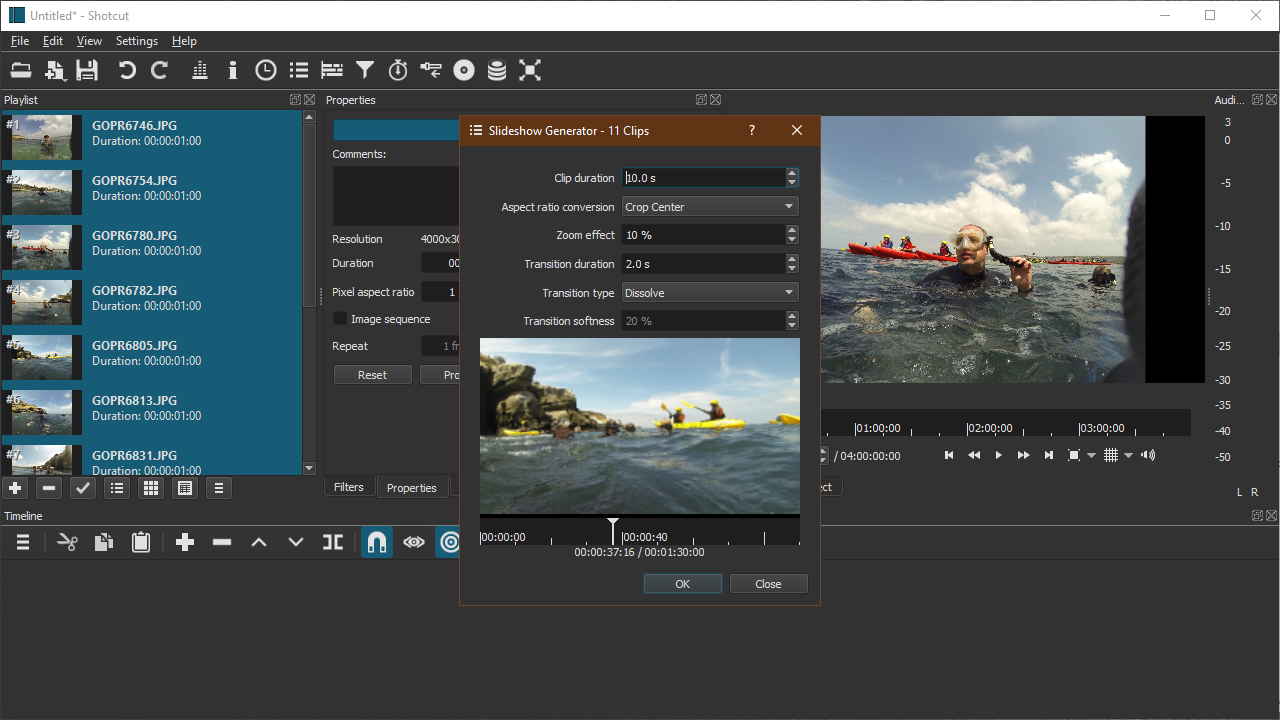
- Added Playlist > menu > Add Selected to Slideshow slideshow generator!
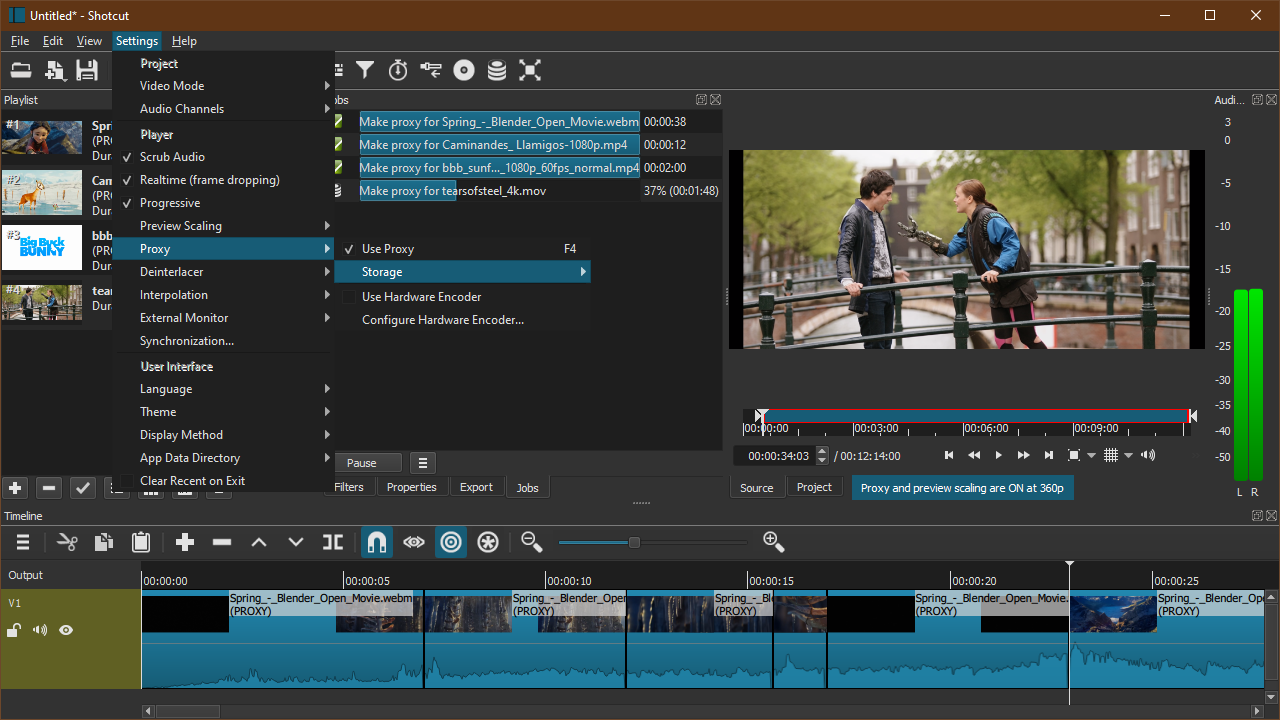
- Added Settings > Proxy for videos and images. See the documentation
- Added bigsh0t 360° video filters (contributed by Leo Sutic):
- 360: Equirectangular Mask
- 360: Equirectangular to Rectilinear
- 360: Hemispherical to Equirectangular
- 360: Rectilinear to Equirectangular
- 360: Stabilize
- 360: Transform
- Added Open Other > Blip Flash generator.
- Added 2 new Export presets: Slide Deck (H.264) and Slide Deck (HEVC).
- Added a Background color parameter to the Rotate and Scale and Size and Position video filters.
- Added Help > Topics with keyboard shortcut F1.
- Added the ability to drag-n-drop from external file manager (Explorer, Finder) directly to Timeline.
- Added Merge with next clip to the timeline clip context menu. This only works for clips that are from the same source and contiguous. This is not clip grouping.
- Added returning to the original file if you Reverse a reversed clip.
- Added Settings > Synchronization… to calibrate the Shotcut player. This works while something is currently playing to help you calibrate using a known good clip.
- Added millisecond Format options to the Timer video filter.
- Added Add a keyframe button to the Keyframes panel for all parameters (previously it was missing on some paramters).
- Added the Reduce Noise: Wavelet video filter.
- Added a context menu (right-click) to the Recent panel with a Remove action.
- Added keyboard shortcut ; to toggle a keyframe at the playhead position.
- Added keyboard shortcut F2 to rename a clip.
- Added keyboard shortcut F3 to search in Recent.
- Added keyboard shortcut F11 to toggle fullscreen.
- Added View > Enter Full Screen on Windows, but simply maximizes due to issues with popup (dialog) windows not appearing on top.
- Added progress dialogs in several places where time consuming activities occur that otherwise block the user interface.
Changes
- Renamed Timeline > Master to Output.
- Stop selecting Output (formerly Master) by default when opening a project.
- Removed Settings > External Monitor > DVEO VidPort.
- Export now sets color primaries automatically based on the Video Mode colorspace.
- Use Qt’s internal image orientation detection instead of libexif.
- Upgraded Mesa software OpenGL in Windows build to version 19.2.7.
- Upgraded SDL audio output library in Windows build to version 2.0.12.
- The keyboard shortcut to open a playlist item is changed to Ctrl+Enter (Cmd+Return on macOS).
- Changed the keyboard shortcut to open the web page of keyboard shorcuts to ?.
- Change the timeline toolbar icon for Timeline > Split to something more clear and obvious.
- Timeline no longer shows thumbnails for video when the track height is at its lowest.
- The Timeline toolbar button to toggle Scrub while dragging is now saved to settings.
- Export > Video > Deinterlacer is no longer disabled when Scan mode is Interlaced (Anything that causes a change to the vertical resolution of an interlaced source is automatically deinterlaced.)
- Deprecated the following video filters. These will be removed in the next version.
- Rutt-Etra-Izer
- Swirl
- Text: 3D
- Text: HTML
- Added a Detect button to the Use hardware encoder > Configure dialog.
- Memory is now released when you choose File > New, File > Close, or Export File. (Previously it would keep most of it for reuse.)
- Improved constant quality rate control mode for Intel Quick Sync Video.
- Changed Playlist > Sort > By Name to be case insensitive.
- Improved the performance of image sequences.
- Significantly improved the performance of the automatic image padding.
- Show a project’s current Video Mode as selected in the Settings menu when opened.
- Added a timecode tooltip to the mouse pointer when over the player, Timeline, or Keyframes scrub bars.
- Filter VUIs (video user interfaces) are now disabled when the filter is disabled.
Fixes
- Fixed Open Other > Audio/Video Device on Windows with special characters in name.
- Fixed changing Properties > Audio > Track sometimes does not work.
- Improved A/V synchronization on speed-changed clips with Pitch Compensation or using the Pitch audio filter.
- Fixed changing Crop: Source video filter, Right parameter on an image with odd width skews the image.
- Fixed audio pops and clicks in a few places.
- Improve A/V synchronization when resampling audio rate is required.
- Fixed incorrect color when using Export > Codec > libx264rgb.
- Fixed the clip name after using Properties > Convert or Reverse.
- Fixed showing the waveform after undo Detach Audio.
- Fixed Audio Tone in Timeline loses focus after change in Properties.
- Fixed moving clip sometimes does not adjust background duration.
- Fixed Filters, Timeline, and Keyframes responding to touch screen.
- Fixed a crash when you use Timeline > Append, Insert, or Overwrite after choosing File > Close or File > New.
- Fixed Backspace or Delete key in input fields sometimes delete timeline clip.
- Fixed Timeline > Select All incorrectly includes clips on locked tracks.
- Fixed track filter out points are changed after reopening a project.
- Fixed the default timeline height is too short.
- Fixed Properties > Convert ruins filters on clips that were never selected.
- Fixed a crash when using Crop: Source > Center bias.
- Fixed seeking to the out point in the Source player when you click to seek after the out point.
- Fixed setting in > out or out < in in the Source player not reliably updating a playlist clip.
- Fixed saving projects with relative paths.
- Fixed keyframes for the Level parameter of the Opacity filter.
- Fixed drop-framed timecode for 59.94 fps to follow a strict cadence.
- Fixed the Reduce Noise: Smart Blur and Reduce Noise: Wavelet video filters to not overwrite the alpha channel.
- Fixed the image quality (interpolation) of a Size and Position or Rotate and Scale filter inside of a transition.
- Fixed loading image sequences when the sequence number in the file name does not start with 1.
- Fixed a crash when using JACK audio and File > Open Other.
- Fixed Export > Video not updated when open clip-only project.
New Version 20.04.12: Speed Pitch Compensation and Replace
Version 20.04.12 is now available for DOWNLOAD!
The proxy management feature is not ready, but we worked on a building block in the form a Replace edit command that is integrated into Reverse and Convert to Edit-friendly. This will be used to asynchronously integrate proxies after they have been generated.
New
- Added Properties > Speed > Pitch Compensation for automatic pitch correction for speed changes > 0.1x.
- Added a Replace command to Timeline clip menu including blank regions with shortcut R.
- Properties > Reverse now automatically replaces a selected clip on the timeline (or in Source player if using that).
- Added 15 second handles when using Properties > Reverse on a timeline clip. Handles are extra footage before the in point or after the out point. This makes it easier to adjust edits or add transitions around reversed clips.
- Added Properties > Duration > Timeline to show (not editable) the duration of a timeline clip.
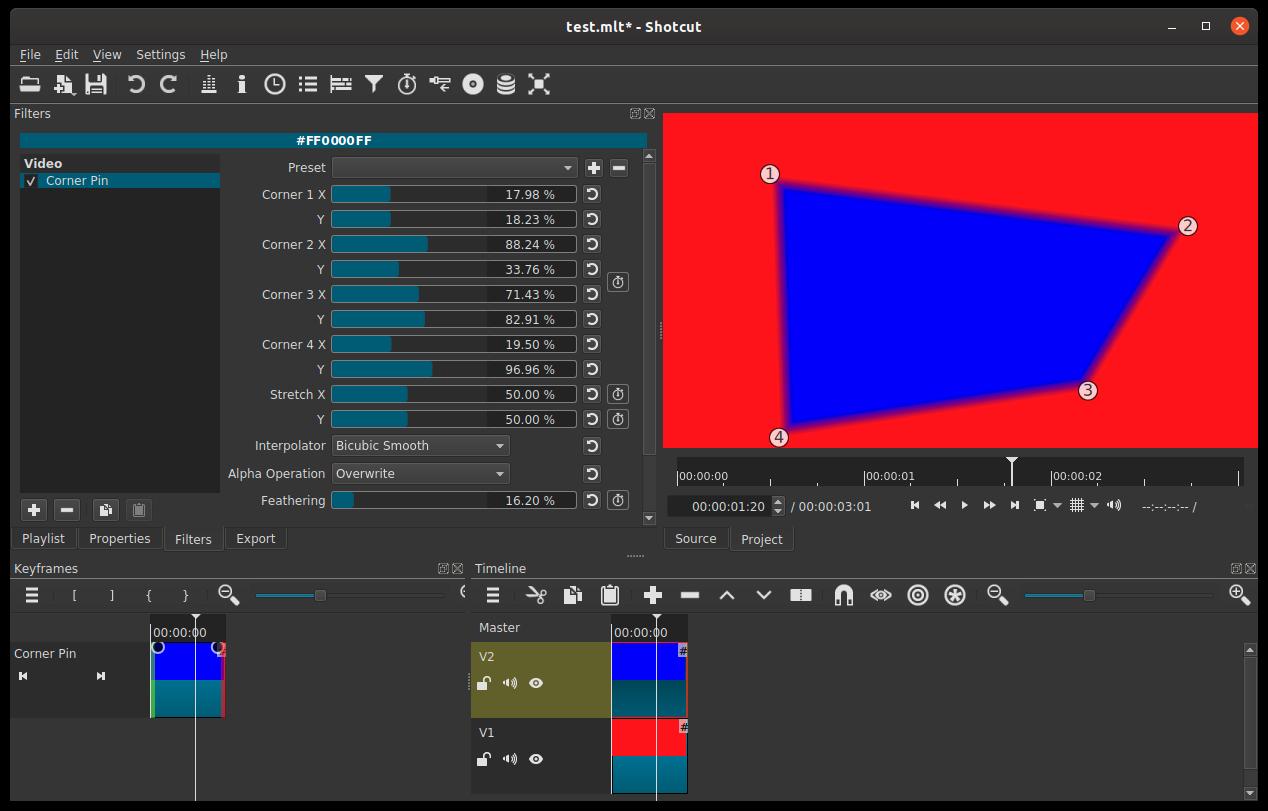
- Added a Corner Pin video filter (thanks to @sauron in the forum for the initial effort).
- Added a Properties > Convert button to make Convert to Edit-friendly in the menu more convenient (kept in the menu for now because a number of support tips reference it).
- Properties > Convert now automatically replaces respective clips in Source and Timeline and adds its clip to the Playlist.
Fixes
- Fixed
=in Text: Simple filter ignores all text before the sign (broken in v20.02). - Fixed a crash when using some video filters with Preview Scaling and multiple video tracks:
- Choppy
- Rutt-Etra-Izer
- Swirl
- Text: 3D
- Text: HTML
- Fixed Offset X and Y parameters of Rotate and Scale filter with Preview Scaling.
- Fixed video artifacts when using a video for a custom transition and Export > Parallel processing.
- Fixed video artifacts when using the Distort video filter and Export > Parallel processing.
- Fixed video artifacts when using the Rotate and Scale or Size and Position filters, multiple video tracks, and Export > Parallel processing.
- Fixed missing code-signing entitlements for macOS that caused crashes when using the following (broken in v20.02):
- Open Other > Audio/Video Device
- HTML-based video filters:
- Choppy
- Crop: Circle
- Crop: Rectangle
- Rutt-Etra-Izer
- Swirl
- Text: 3D
- Text: HTML
- Fixed floating or docking some panels may crash on some Linux systems:
- Filters
- Keyframes
- Timeline
- Fixed changing the name of a track in Timeline when leaving the field without pressing Enter.
- Fixed File > Export Frame exports uses Preview Scaling instead of project resolution.
- Fixed switching between Cut and Dissolve in transition properties.
- Fixed project not modified when changing transition properties.
- Fixed pressing Enter in Filters search may open a playlist item.
- Fixed a regression in JACK transport control (broken in v19.12).
- Fixed a missing Timeline track Lock button animation when lock prevents something.
- Fixed clips can be moved to locked timeline tracks (broken in v19.12).
- Fixed treating paths with Windows drive letters as relative on macOS and Linux.
- Fixed automatically relinking filters with HTML files (when app location changes or moving projects).
- Fixed Undo followed by Redo after a Lift or Remove on a transition saves the transition as
INVALID. - Fixed some filters than use external files broken when using network (UNC) paths on Windows:
- LUT (3D)
- Mask: From File
- Text: HTML
- Fixed Filters > Copy & Paste does not keep filter in and out points.
- Fixed opening with a file from the command line on Linux snap or portable.
- Fixed Export can overwrite a source when run from command line.
- Fixed Keyframes previous/next buttons not using the parameter track to which they belong but rather the current track.
- Fixed opening a playlist clip or a new clip breaks filters on Timeline > Master if it is selected.
Changes
- Changed Export > Video > Parallel processing to default to OFF but also now it save the state between export jobs and app session.
- Added support for FFmpeg
sample_fmtoption to Export > Other. - Automatically disable parallel processing on add-on bigsh0t (360) video filters.
- Stop adding
title="Anonymous Submission"to MLT XML. - Increased the priority of background jobs a little on macOS and Linux (still less than normal).
- Added
448kto Export > Audio > Bitrate. - Added automatically scroll the Timeline when you double-clock a clip to select-and-seek.
- Updated the mouse wheel behavior in Keyframes to match the changes to Timeline in version 20.02.
- Added an option to place an icon on the Desktop to the Windows installer.
- Add a cursor to the Audio Waveform scope.
- Removed Export > Stream as it is not supportable in its current state.
- Changed shortcuts C and Ctrl+C to work with the clip under the playhead of the current track if no clip is selected. This makes it behave similar to other editing shortcuts.
- Changed the keyboard modifier for skim to Shift+Alt. This prevents Shift (previous modifier) when selecting multiple clips from changing playhead position.
NOTE: On macOS, in order to scroll Timeline or Keyframes horizontally with a mouse wheel (not Magic Mouse or track pad), you must also use one of the following:
- Control
- Control+Option
- Control+Command
- Option+Command
- Changed the Matrix parameter of the Dither video filter to be a drop-down combo box without keyframes support.
- Changed Alpha operation > Write On Clear to Overwrite on some video filters to make them more clear:
- Mask: Simple Shape
- Chroma Key: Advanced
New Version 20.02.17: Low Resolution Preview
Version 20.02.17 is now available for DOWNLOAD!
New
Low Resolution Preview Scaling
Most people’s video preview area only occupies a fraction of their screen.
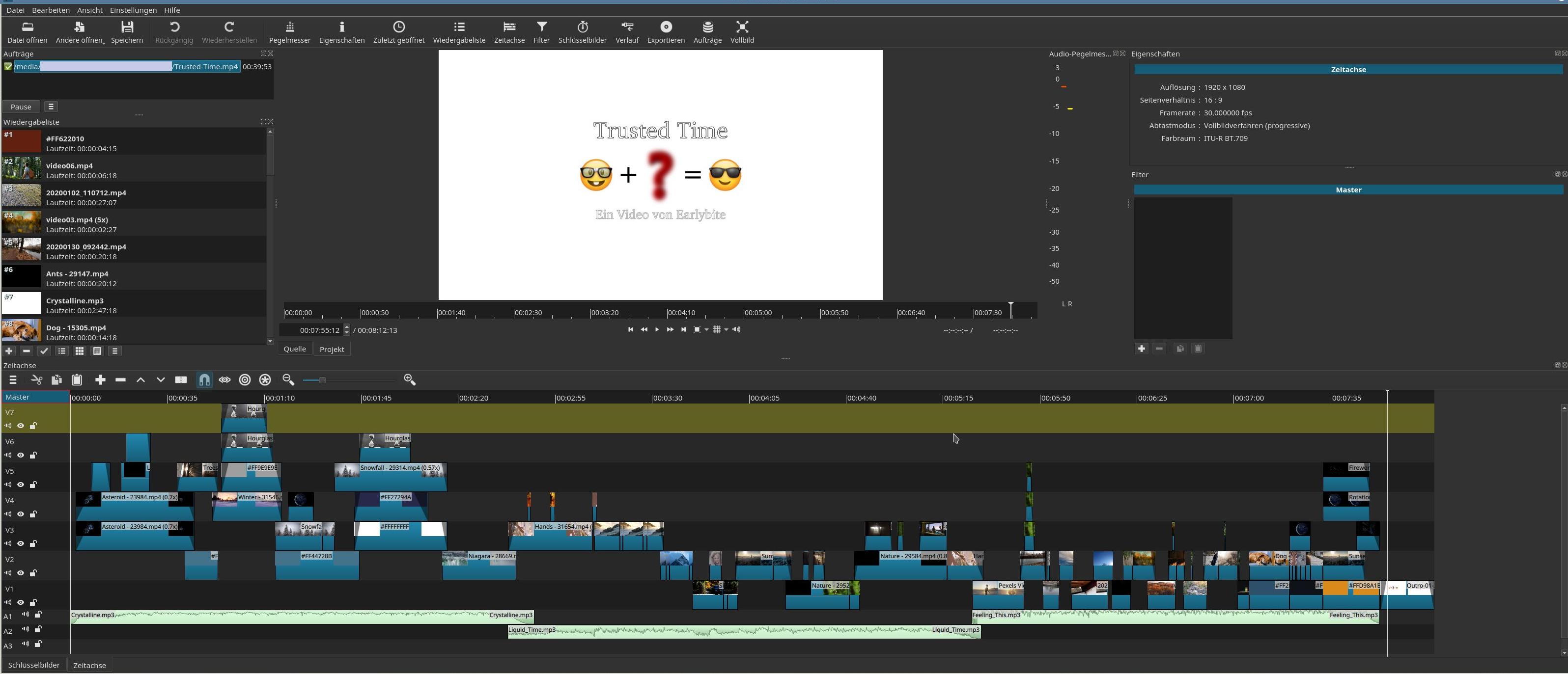
Meanwhile, the app is struggling to process effects in realtime while editing a 1080p or higher video. So, it makes sense to change the processing resolution while editing to roughly the same as the preview window. For example, for many people, the video preview typically only occupies 1/9 of their 1080p screen. Thus, you can edit at 640x360 instead of 1920x1080 to give the app and computer less work.
This is now available in the Settings under Preview Scaling. If you are using a larger or high DPI screen or editing higher resolution, you might want to edit at a higher resolution, and Shotcut also offers options for 540p and 720p in addition to 360p for the preview vertical resolution.
Please remember that today there is still a processing cost to scale down the source video to the preview resolution. So, this is still not a silver-bullet, magical cure-all for performance issues. This feature will be more beneficial when low resolution proxies are used, which is planned for version 20.04 in April.
Also, please understand that preview scaling is a step further away from WYSIWYG and does not provide perfect fidelity and full precision. Some differences are unavoidable especially where blur, softness, and noise are concerned.
In addition, some filters do not support preview scaling and will process at full project resolution:
- Choppy
- Rutt-Etra-Izer
- Stabilize
- Text: HTML > Blank with Web Animations
- Text: HTML > Simple Scroll
- Text: HTML > Two Column Scroll
Lastly, a Use preview scaling checkbox has been added to Export > Advanced > Video. This is intended to provide a faster export for draft review. You should leave the export resolution set to the project resolution unless your preset or video codec dictates a resolution.
Audio Pitch Filter
Ever since we made it possible to change the speed of a clip, people have wanted a way to keep the audio at roughly the same pitch instead of going lower or higher. Also, sometimes people want to use a pitch effect for comical reasons or to disguise a voice. We are happy to announce a new Pitch audio filter. This has a speed compensation parameter so that you can copy the speed value from Properties into the filter. In the next version, we will directly integrate a pitch compensation option in the Properties panel. Please consider that this really only works with decent quality in the 4.0x - 0.25x speed range.
More Transitions
Frequently, people ask for more transitions. Well, how about 150+!? After you create a transition by overlapping clips on the same track, select the transition and look in Properties > Video. There has always been a Custom… option where you can upload a gray scale still image, and our Resources page provides a list of resources where to get them. In this version you can now use a grayscale video clip, which some call a “matte transition.” Forum user @jonray has put together a nice collection of these, also on the Resource page.
Please be aware that these transitions do not automatically adjust their duration. If you do not make the transition long enough, it will likely be abrupt at the end. If you make it longer, however, there is no problem. You can also use these to make multi-track transitions by adding the Mask: From File video filter to the clip on a higher video track.
Other Enhancements
- Added Views > Scopes > Video Vector.
Note that the graticule on this is non-traditional, inspired by Alexis Van Hurkman. - Added the ability to rename clips in Properties by clicking into the header where the name is displayed.
- Added a few more export presets:
- audio/ALAC
- audio/FLAC
- intermediate/DNxHR HQ
- intermediate/ProRes HQ
- intermediate/ProRes was changed to ProRes 422
- Added Arabic translation.
Fixes
- Fixed dropping multiple files to Playlist in a new project (broken in v19.12.31).
- Fixed some broken keyboard shortcuts in the Turkish translation.
- Fixed Properties > Speed not working after a project file repair.
- Fixed clip selection after Insert Track or Remove Track.
- Fixed Playlist > Add Selected to Timeline creates corrupt clips (broken in v19.12.31).
- Fixed Settings > Display Method > Software (Mesa) on Windows (broken in v19.12.31).
- Fixed creating a Project folder with leading or trailing spaces.
- Fixed saving the
lengthproperty in MLT XML as a time value independent of frame rate. - Fixed starting Text: Simple video filter with “@” shows “0”.
- Fixed seeking previous & next on the first track in Keyframes where you trim a filter or use simple keyframes.
- Fixed an unexpected transition is created when moving a clip rightward adjacent to the next clip in Timeline (regression in v19.12.16).
- Fixed drag-n-drop from Source player to Timeline left player in an inconsistent state (broken in v19.09.14).
- Fixed an inconsistent colorspace conversion when accessing a cached image.
- Fixed Playlist > Copy followed by a change in Properties incorrectly changes the playlist item.
- Fixed clicking on the rectangle control may change its size.
- Fixed using the LUT (3D) filter with file with extended characters in its file path on Windows.
- Fixed a crash when using a transition on every track at the same time.
Changes
- Improved the reliability of Timeline > Select None.
- Changed Timeline > Master > Properties > Frame rate to show 6 decimal digits.
- Reduced the latency of scrubbing (regression in v19.12.31).
- Changed the video-overlay rectangle control used in some filters to allow
changing the position by dragging from anywhere inside the rectangle.
To enable this, one must first double-click the center circle to change the mode. Otherwise, you would be prevented from dragging the clip out of the Source player. - Changed the Filters panel on macOS to prevent floating to avoid a frequently reported problem of the Filters window appearing blank/black.
- Changed Timeline > clip context menu > Detach Audio to not seek afterwards.
- Improved mouse wheel and trackpad behavior in Timeline.
Now, you do not need to ensure the mouse pointer is over a clip, speed is reduced, and zoom keeps focal point in view. The new zoom behavior does not apply when using the option Center the Playhead in the timeline menu. - Upgraded MLT to version 6.20.0 and WebVfx to version 1.2.0.
Search
Recent Posts
- Posted on 27 Sep 2026
- Posted on 01 Aug 2026
- Posted on 25 Jun 2026
- Posted on 29 Apr 2026